How to set up SimPal
Everything from installing SimPal on your GSPro PC to playing from your phone or tablet. Most people are done in about five minutes. Follow the steps in order, or jump to the part you need.
Install SimPal on your PC
- On the PC that runs GSPro, download SimPal from the Get SimPal page.
- Open the downloaded file (SimPal-Setup) and follow the installer. When Windows asks "Do you want to allow this app to make changes?", click Yes. This lets SimPal set up Windows Firewall so your phone can reach it.
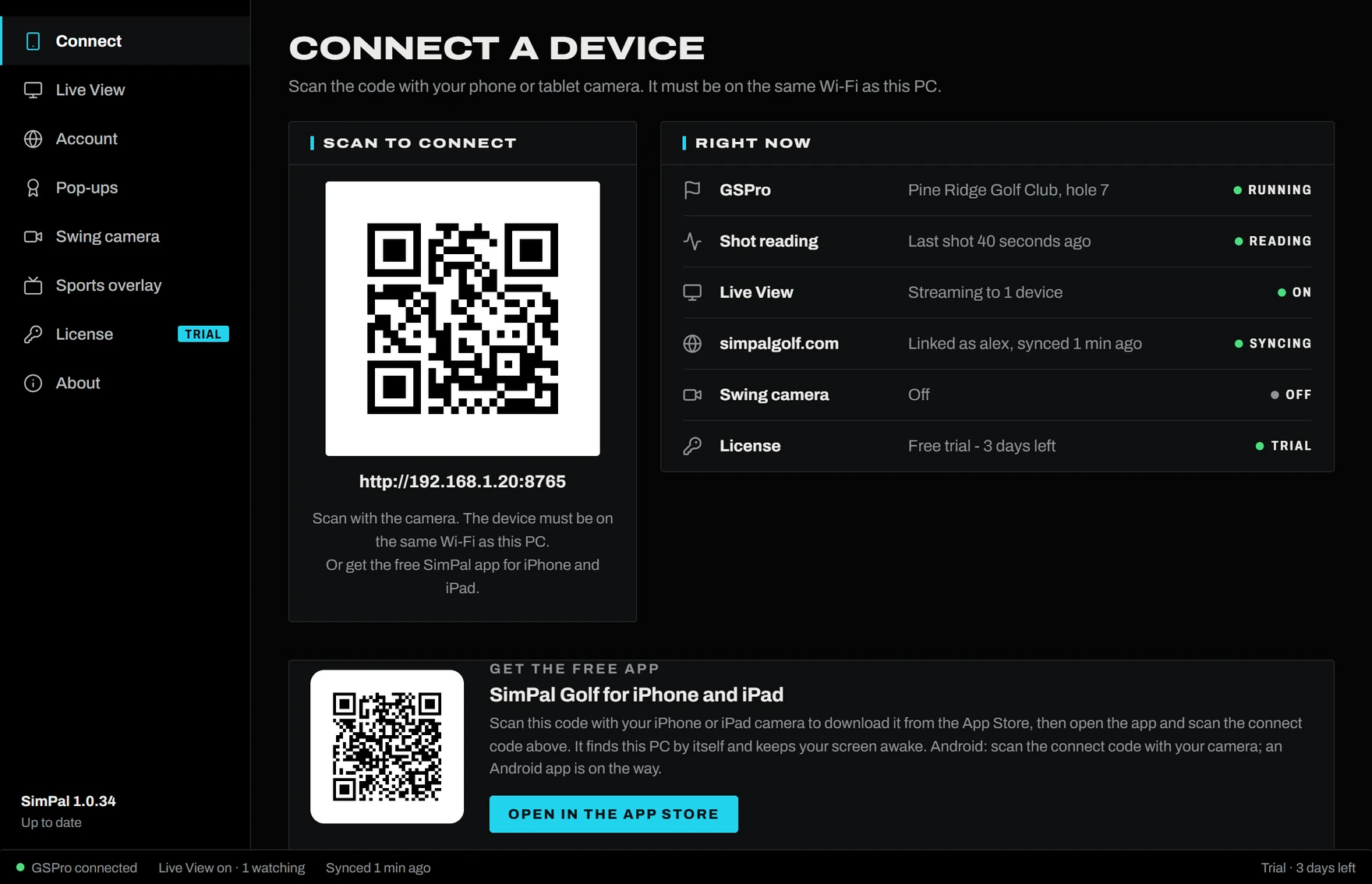
- SimPal opens when it's done, on the Connect page shown here. Your free 3-day trial starts automatically. No card needed.
From now on SimPal starts by itself with Windows and waits quietly in the system tray (by the clock). Closing its window only hides it. It keeps running, and it installs its own updates.
Set up GSPro
SimPal works with GSPro as it is. Two settings make it work best:
- Window mode: in GSPro's display settings, use Windowed or Borderless rather than exclusive Fullscreen. Live View and the pop-ups over GSPro need this. Borderless still fills your screen.
- Data tiles: SimPal reads the shot numbers GSPro shows on screen after each shot (carry, total, ball speed, spin and so on). Turn on the tiles you care about in GSPro, and SimPal saves those numbers with every shot. More tiles means more stats.
Get the app on your phone or tablet
iPhone and iPad: download the free SimPal Golf app from the App Store. It finds your PC by itself, scans the QR code and keeps your screen awake while you play.
Faster: the Connect page on your PC has an App Store QR code. Point your iPhone camera at it.
Android: no download needed for now. SimPal runs in Chrome. In the next step, scan the code with your camera. Then use Chrome's menu, Add to Home screen, to get a SimPal icon that opens full screen like an app. An Android app is on the way.

Connect your phone or tablet
- Make sure your phone or tablet is on the same Wi-Fi as the PC (not a guest network).
- On the PC, open SimPal's Connect page to show its QR code. If the window is hidden, click the SimPal icon by the clock and choose Open SimPal.
- In the app: tap Scan the QR code on your PC and point it at the code. Or tap Find my PC on this Wi-Fi and SimPal finds it for you.
On Android: open the camera, point it at the code and tap the link.
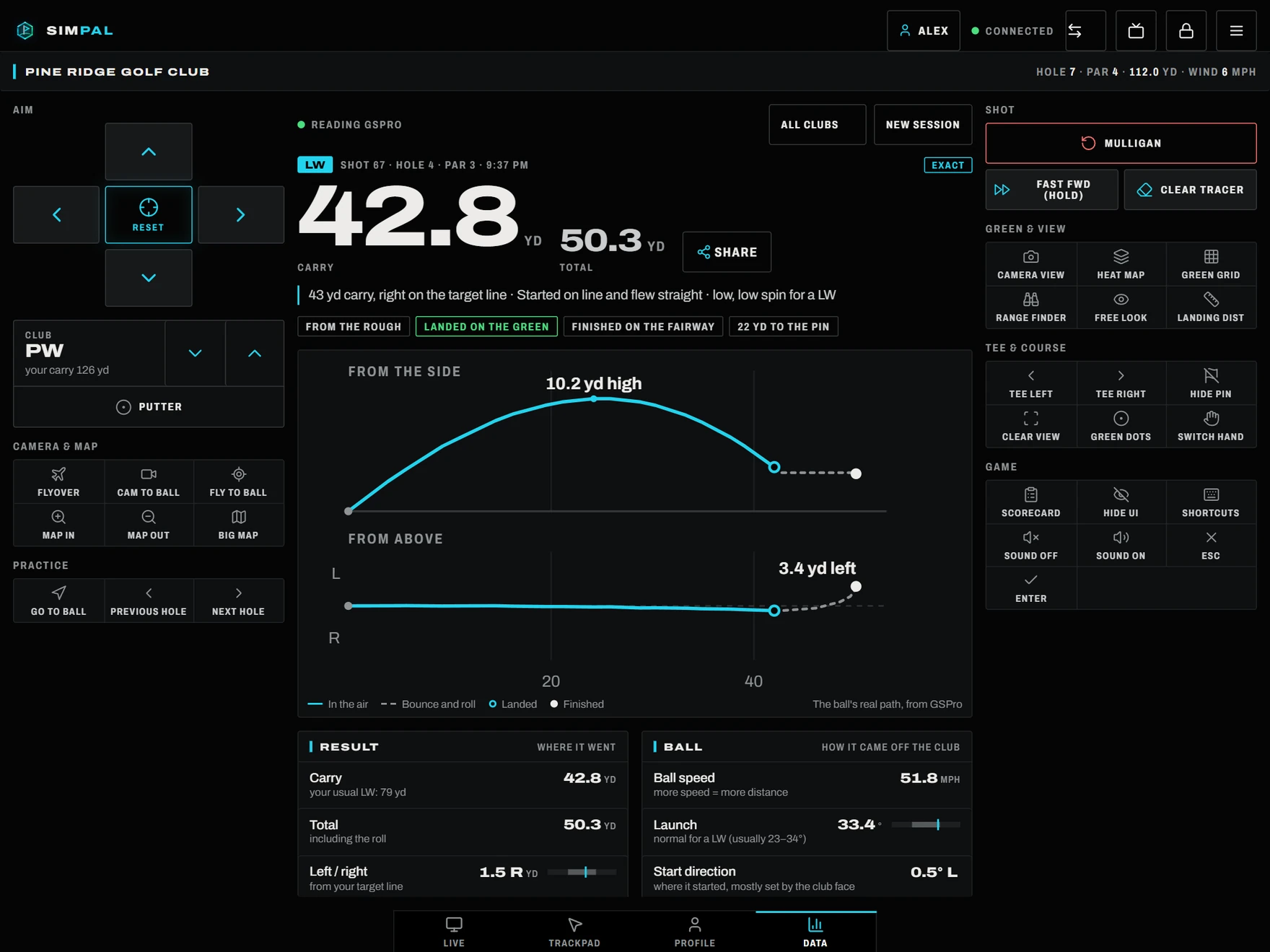
That's it. You'll see the remote with every shot's numbers. The app remembers your PC and reconnects by itself next time.
Watch GSPro live
Live View shows GSPro on your phone or tablet, so you can see the course from anywhere in the bay.
- It starts by itself when GSPro is open. Open the Live tab in the app.
- Tap the picture to click in GSPro, and drag to move, just like the mouse.
- If it stays black, check GSPro is Windowed or Borderless (step 2) and not minimised. You can also press Start Live View on SimPal's Live View page.

Players and your free account
Everyone in the bay can have their own player. Tap the player button at the top of the app to pick who's hitting, so each person's shots and stats stay their own.
Link a free simpalgolf.com account to put your rounds, course records, badges and handicap on your own profile, the leaderboards and the daily challenge:
- Create your free account at simpalgolf.com/account and pick a username.
- On the PC, open SimPal's Account page and click Link account next to your player.
- SimPal shows a short code. Go to simpalgolf.com/link on your phone (or scan the code shown) and enter it.
Shots and rounds then sync by themselves. A friend visiting? They can link their own account for the day, or tap Just visiting. Players without an account are never uploaded.

Keep SimPal Pro after the trial
Every feature is free for 3 days. To keep going, get SimPal Pro for $49.99 a year:
- Buy at simpalgolf.com/buy. Your license key appears straight away and is emailed to you.
- On the PC, open SimPal's License page, paste the key and click Activate.
Nothing you saved during the trial is lost. Your key lives in your account, where you can also turn off auto-renew or move the license to a new PC. One key covers one sim PC, with unlimited players and devices.

Something not working?
My phone can't find the PC
Check that the phone and the PC are on the same Wi-Fi (not a guest network, and not mobile data), that SimPal is running (its icon by the clock), and that any VPN on the phone is off. Then scan the QR code again, or type the address shown under the code (it looks like http://192.168.1.20:8765) into the app or your browser.
Windows asked about the firewall
Click Allow for private networks. The installer normally sets this up for you. If you said no by mistake, run the SimPal installer again and it puts the rule back.
Live View is black
Set GSPro to Windowed or Borderless instead of exclusive Fullscreen, and don't minimise it. Then press Start Live View on SimPal's Live View page.
Shots aren't showing up
Look at Shot reading on SimPal's Connect page. Make sure GSPro is showing its data tiles after each shot: SimPal saves the numbers GSPro shows, so turn on the tiles you want.
I got a new PC
Install SimPal on the new PC. Then either click Move license to another PC on the old PC's License page, or sign in to your account and remove the old PC. Then activate the same key on the new one.
I lost my license key
Sign in to your account with the email you bought with. Your keys are listed there, and you can email them to yourself again.